How to Open and Save Doc Files in iPhone 4S for Free
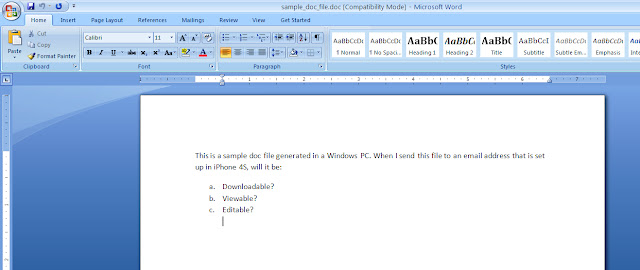
A sample Word Document file opened in a Windows PC.
A doc file can be opened in your computer using a compatible software. Can your iPhone 4S do it?

The easiest way to open and save a doc file in iPhone 4S (for free) is to send it to an email address that is set up in iPhone 4S. Sometimes the documents we need to carry around for reading are in a Document file format. While iPhone 4S has a built-in e-book app, iBook, it can only open ePub and PDF formats. When you can't convert your doc files in PDF and you just want to easily carry them around for quick reading, sending them via email is the way to go. Below is the three-step tutorial on how to send a doc file via email so you can open and save it later in your iPhone 4S.

Step 1. If the doc file is in your computer, open up your email account, compose new, attach the doc file, and send it to an email address that is set up in iPhone 4S. (Read the article about
setting up emails in iPhone 4S if you haven't done any of that yet). If the doc file is in some other mobile device, you're still going to have to do the same thing. You would open a web browser like Safari, or Google Chrome to access your email. Or if you're using an email program like Microsoft Office Outlook, or Mozilla Thunderbird, then you just open the application, compose new, attach the doc file, and hit send.

Step 2. Open the Mail app in iPhone 4S and wait for the mail to get pushed. Once it's in, open the mail, and look for the attachment. The attachment is located at the bottom of the mail. Touch to select it and there you go, your doc file is opened in iPhone 4S.
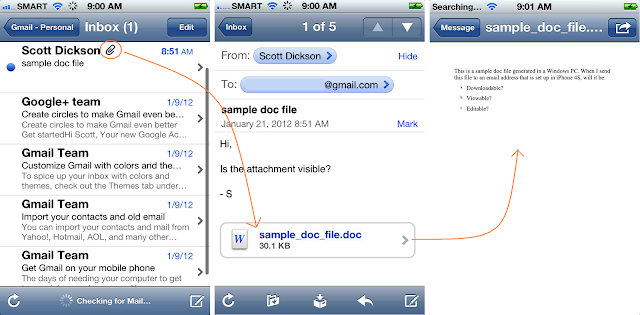
How to open a doc file attachment in an email accessed via Mail app in iPhone 4S.
The paper clip symbol right next to the sender is an indicator that the email contains an attachment. The attachment is located at the bottom of the email and touching it will open the file. 

Step 3. How do you save the doc file in iPhone 4S? The fact that it's opened via Mail app means that the mail is already archived. So even when you are not connected to Wi-Fi or 3G, you can still open up the mail and the doc file attachment in it. But since there is a limit to the number of mails in the Inbox that your Mail app will fetch at start up, it is a good idea to manually organize and archive your doc files. To do this, you can create a separate mailbox (folder) in your email account in iPhone 4S and name it "Doc Files". You can move all mails containing doc file attachments to this folder. To create a new mailbox, just open up the email account in iPhone 4S, select Edit from the upper right corner of the top bar, then New Mailbox on the lower right corner of the bottom bar. Type in "Doc Files",  and Save. So next time you need a particular doc file, you won't have to browse through your Inbox to look for the mails containing your doc file attachments.
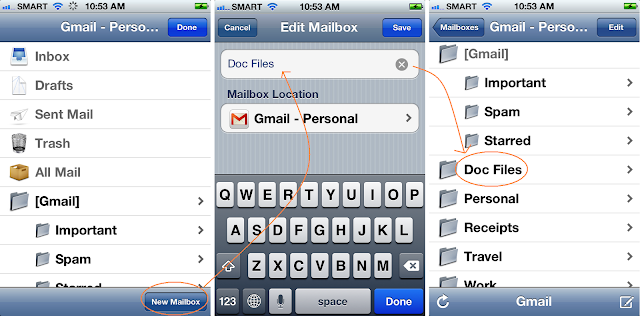
How to add a new mailbox in Mail app in iPhone 4S.
To organize emails containing doc files attachment, you can add a new folder in your email account in iPhone 4S.

Note: The Doc Files folder is created in your mail server, not locally in your iPhone 4S. So make sure that before you leave your wireless network connection at home, the emails have already been moved in your special Doc Files folder.

Sending a doc file to an email account set up in iPhone 4S is the easiest and free way to open and save the file for reading. Editing a doc file may require a third party app. But if you only need a quick read of multiple doc files, your iPhone 4S can let you open and save them in your mail folders which you can access later even without an Internet connection.
How to Set Up Emails on iPhone 4S

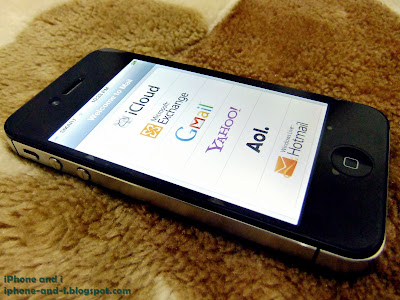
iPhone 4S list of supported email services in the Mail app.
iPhone 4S has easy set up options for popular email services like Microsoft Exchange, Gmail, Yahoo, and more. 

To set up emails on iPhone 4S, the number one requirement is that the email accounts have to be already existing. Setting up an email account on iPhone 4S is not the same as signing up for an email account. You sign up for an email account using email services like Yahoo, Gmail, or Hotmail. Once an account has been created (or if you already have an account that you have been using), then that's when you can set it up on your iPhone 4S. Setting up emails on iPhone 4S has the following benefits: you can access your emails  anywhere with an Internet connection (Wi-Fi or 3G); no need to open a web browser and type email service URL; you won't need to constantly sign in.

Let's take Gmail as an example. To setup an existing Gmail account on iPhone 4S, do the following:

Step 1.On your iPhone 4S, go to Settings > Mail, Contacts, Calendars > Add Account. A list of supported email services will appear. Click on Gmail.

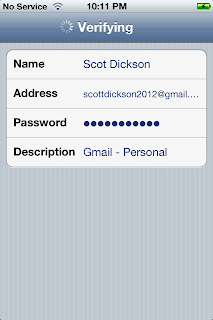
Step 2. Type in your Gmail account details. To successfully set up your mails on iPhone 4S, these details have to be accurate. The email service server will be contacted for verification of your account, and an invalid entry will keep you from setting up your email on the iPhone 4S Mail app. You only type your email account details once and that's during this step.

iPhone 4S email settings for setting up Gmail account.
To set up your email account on iPhone 4S you will need to provide accurate email account details for verification. 

In the above screen shot, Name is the name of the registered email account; Address is the corresponding email address; Password is the case-sensitive password for your email account. Description is how you want to identify this email account on your iPhone 4S. You are allowed to setup multiple emails from different email services on iPhone 4S. Description allows you to distinguish one from the other.

Step 3. When you are sure that the details you have provided are accurate, click Next and your account details will go through Verification. Make sure that you have an Internet connection either through Wi-Fi -or- your carrier's cellular data network (turn celluar data on: Settings > General > Network > Ceullar Data "On"). At this point your details will be forwarded to your email service server for verification. Once that completes, you will be informed that your account has been "Verified". If you have provided an invalid entry, you will be informed that something is incorrect and you're going to have to check and re-input your email account details.

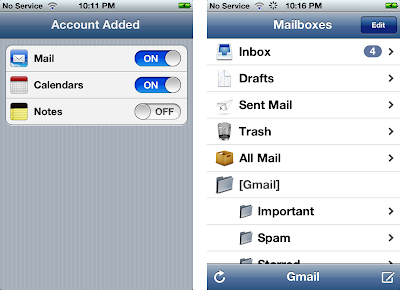
Step 4. When your account has been verified valid, you will next have to configure a couple of Mail apps for your newly added email account (see screen shots below). Make sure Mail is toggled "ON" otherwise even though your account has been verified, your emails will not be pushed to your iPhone 4S. Calendars from Gmail will also be synced to your iPhone 4S if you toggle Calendars "ON". The same goes with Notes. After that, click Save and "Account Added" will be written across the top bar to confirm your successful set up. And that's it! You have just successfully set up Gmail on your iPhone 4S. your account will be added to the iPhone 4S Mail app which you can access from the iPhone 4S home screen. When you click on the Mail app button, your Gmail account will already appear and you can start sending and receiving emails using your iPhone 4S.

Successfully added Gmail account on iPhone 4S Mail app.
When an email account is successfully set up on iPhone 4S, it will appear in the Mail apps located in the home screen.

To set up emails on iPhone 4S from a different email service provider, the same set of steps apply. The important thing to remember is that in order to successfully set up emails on your iPhone 4S, you have to input the correct email account details. Adding multiple email accounts on your iPhone 4S is possible (just repeat the steps above for each). When you that, you can access all your email accounts on your iPhone 4S simultaneously.

To learn how to configure notifications for new emails, read the article about
How to Customize the Notification Center in iPhone 4S.
Copyright 2011. All rights reserved.
artist photos